
How to Create a QR Code Wedding Seating Chart (Step-by-Step Guide)
You have decided to skip the foam board. Good call. Now comes the practical part: how to make a QR code seating chart that actually works on the day, for every guest, on every phone.
The good news is that the process is shorter than most couples expect. If your guest list is already in a spreadsheet, you can have a working chart in an evening. The part that takes real care is not the setup. It is the printing, the placement, and the testing, because those decide whether guests scan once and walk to their table, or stand at the entrance wondering why nothing happens.
This guide walks through each step in order, using DigiSeats as the example tool. The same logic applies to most digital seating chart makers, so even if you pick a different platform, the checklist at the end is worth keeping.
Why Couples Switch to QR Seating
A quick reminder of what you are getting, so you know which features to use.
Guests search their own name. They scan the code, type the first few letters of their name, and see their table. No scanning a long printed list.
Changes go live right away. The QR code points to a live page. If you move a guest at 4 PM, the 5 PM scan shows the new table. Nothing gets reprinted.
The entrance stays clear. Instead of one crowd at one poster, guests look up their seat on their own phones, from anywhere in the room.
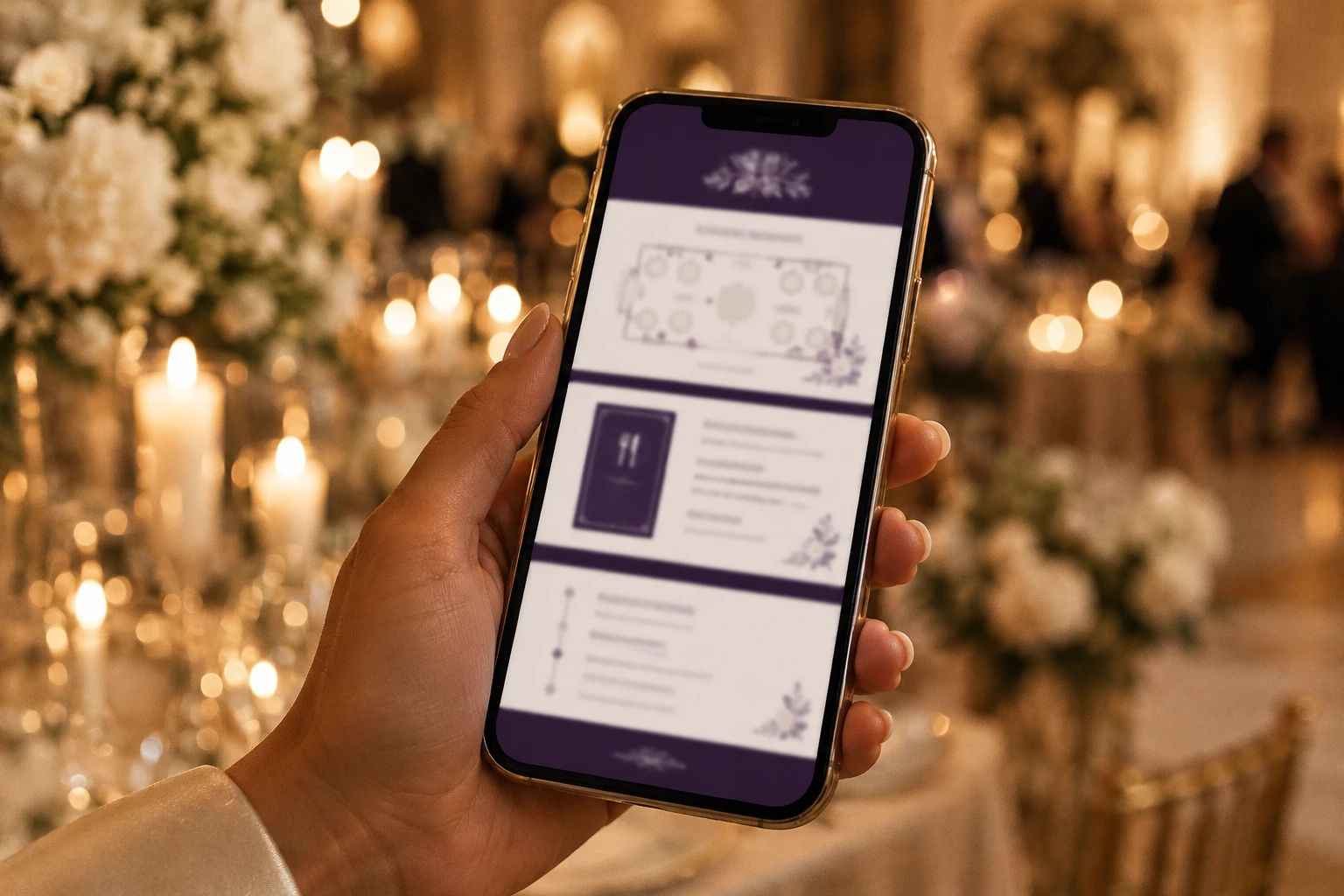
It can do more than seating. On higher plans you can add a venue floor plan, a menu, and an event schedule to the same page.
If you are still weighing this against escort cards or a printed display, the short version is that QR lookup costs less than most printed options once you count reprints, and it handles guest list changes far better. If you are ready to build, keep reading.
Before You Start: What You Need
Gather these before you open any tool:
Your latest guest list in a spreadsheet (Excel or CSV)
Your table count and any table names or numbers
A rough idea of your wedding colors and a photo or two, if you want a custom background
Your venue floor plan, menu, and timeline if you plan to share them
Do not wait for a perfect list. You can upload now and edit later, which is the whole point.
Step 1: Import Your Guest List

Everything starts with a clean spreadsheet. A messy file leads to messy search results, so spend ten minutes here.
Use these columns at minimum:
First Name
Last Name
Table Number
DigiSeats reads these three columns on import. Keep one guest per row, including plus ones.
Add a Message column if you like. You can include a personal note for each guest, and they see it when they look up their seat. Something short works best, such as "Aunt Maria, thank you for flying in" or "Dan, we could not do this without you as best man."
Fix the names your guests will actually type. This is the step most couples skip, and it causes the most confusion on the day. Guests search by the name they use every day. If your cousin goes by Mike but the list says Michael, he might not find himself. Use preferred first names where you can, and spell last names the way guests would.
Name every plus one. "Guest of Sarah" is hard to search for. If you do not know the name yet, add a placeholder and update it as RSVPs come in.
Keep extra columns for yourself. Columns like group, meal choice, or side of the family do not hurt. They are useful for your own tracking, and on the Extended plan the AI Seat Optimizer reads custom columns during import.
Save the file as CSV or Excel, then upload it to your event in the dashboard. Check the first screen after import and scan the list for typos, duplicates, and empty rows.
Step 2: Assign Tables and Review Pairings
Once the list is in, you place guests at tables.
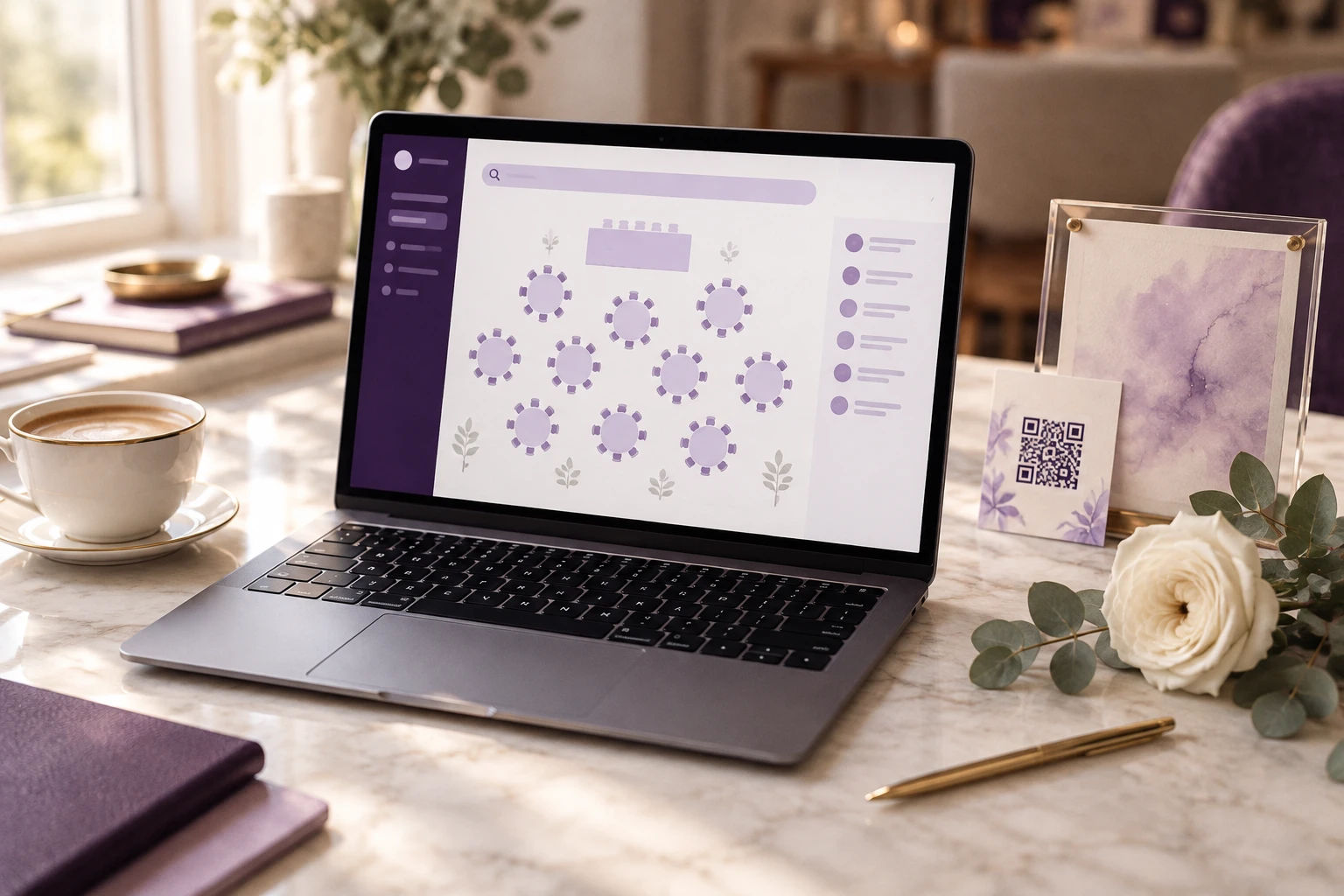
Drag and drop guests onto tables. You can group guests by table, move them around, and update the chart as often as you like. Start with the people who must sit together, such as the wedding party, parents, and immediate family. Then fill in friend groups and colleagues.
Plan the tricky pairings first. Every guest list has a few. Divorced parents, a cousin who needs distance from an ex, two coworkers who do not get along. Put these guests down before anything else, and place them with room to spare. Once the easy tables fill up, there is less room to adjust.
Use the AI Seat Optimizer on Extended. If you have 150 guests or more, this tool saves real time. You tag guests with attributes such as family, coworker, child, VIP, must sit together, or must not sit together. You enter your number of tables and seats per table, and a live preview tells you whether the math works. Then it builds a draft chart that follows your rules. You still review and adjust every table, so you stay in control.
Check your seat math. Count total seats against total guests, and leave a few empty seats for late additions. A table of ten with ten assigned guests has no room for a surprise plus one.
Decide on privacy. On Standard and Extended, you can turn on Anonymous View, so guests only see their own assignment and not the full list. You can also choose whether guests see their tablemates. Some couples like the social element. Others prefer to keep it private.
Step 3: Customize the Guest Experience
This is the step that turns a plain lookup page into something that matches your wedding.
Pick a template and set your colors. Standard and Extended include five pre-made templates, with options to change colors and fonts. Choose one that fits your invitation suite. If your wedding is deep green and gold, the page should be too.
Add a welcome message. One or two warm lines go a long way. "Welcome, and thank you for being here" does more than you expect.
Upload a background photo (Extended). An engagement photo or a venue shot makes the page feel personal.
Add your floor plan (Extended). In a large room, knowing you are at Table 9 does not help if you cannot find Table 9. A simple floor plan lets guests see where their table sits relative to the dance floor, the bar, and the entrance.
Share your menu and timeline (Extended). A digital menu is useful for guests with dietary needs. An event schedule means fewer guests asking the DJ when the cake cutting happens. If you plan to serve a late night snack or run a signature cocktail bar, this is where guests can find it.
Add a countdown. If you share the link ahead of time, a live countdown to your event is a small fun detail.
Keep the page clean. Every item you add is something guests must scroll past to find their table. Seating information comes first, and everything else sits below it.
Step 4: Download and Display the QR Code
Once your chart is ready, you get a unique QR code for your event. Download it as a high resolution PNG so it prints sharply at any size.
Size matters more than style
A QR code that looks beautiful but will not scan is useless. Follow these minimums:
Entrance signage: at least 4 inches square on the sign, so guests can scan from arm's length.
Menus, programs, and table cards: at least 1.5 inches.
White space: leave about a quarter inch of empty margin around the code so the camera can find its edges.
Print resolution: use 300 DPI.
Where to place it
Do not put all your eggs in one sign. The point of QR lookup is that guests can scan from anywhere, so give them several places.
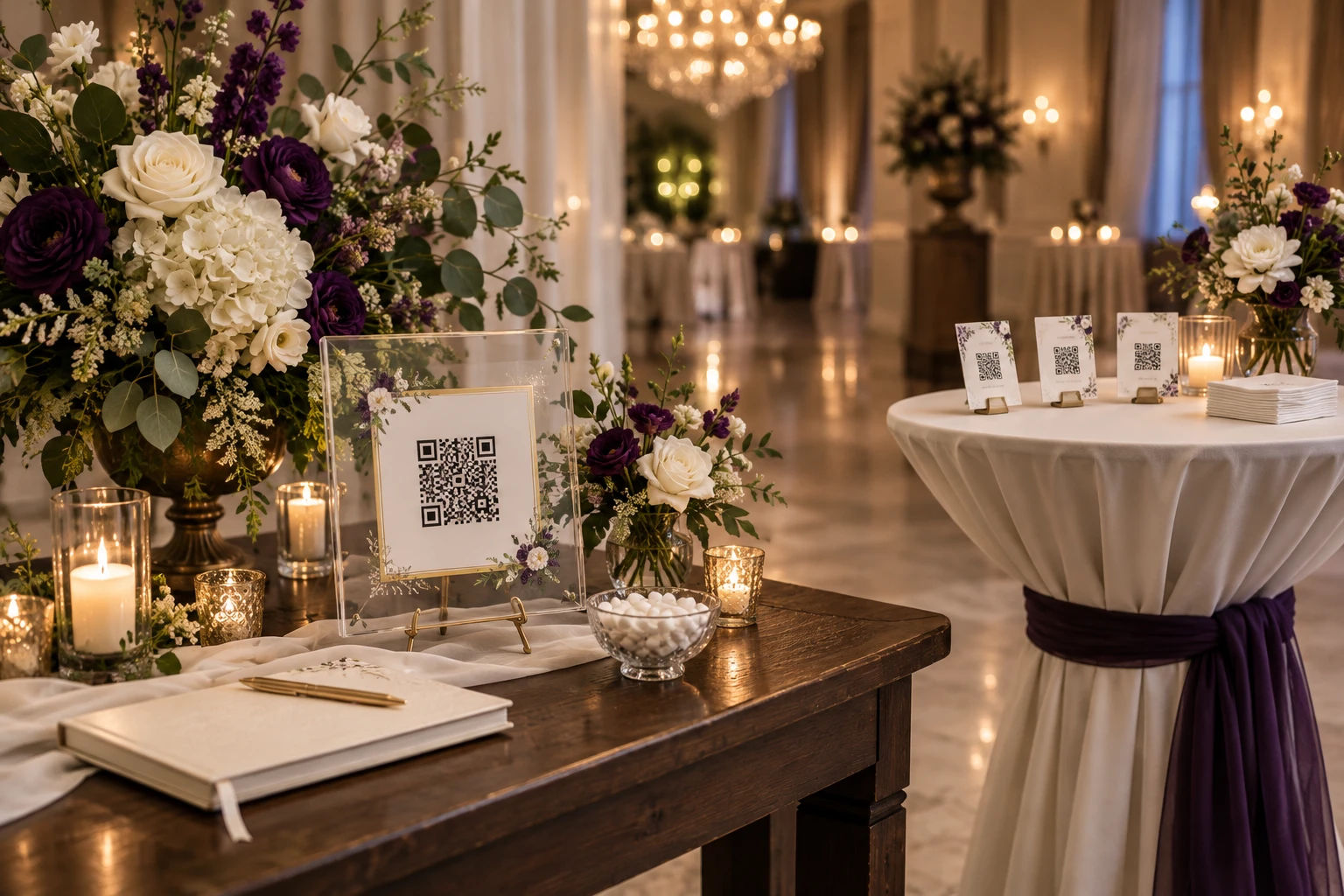
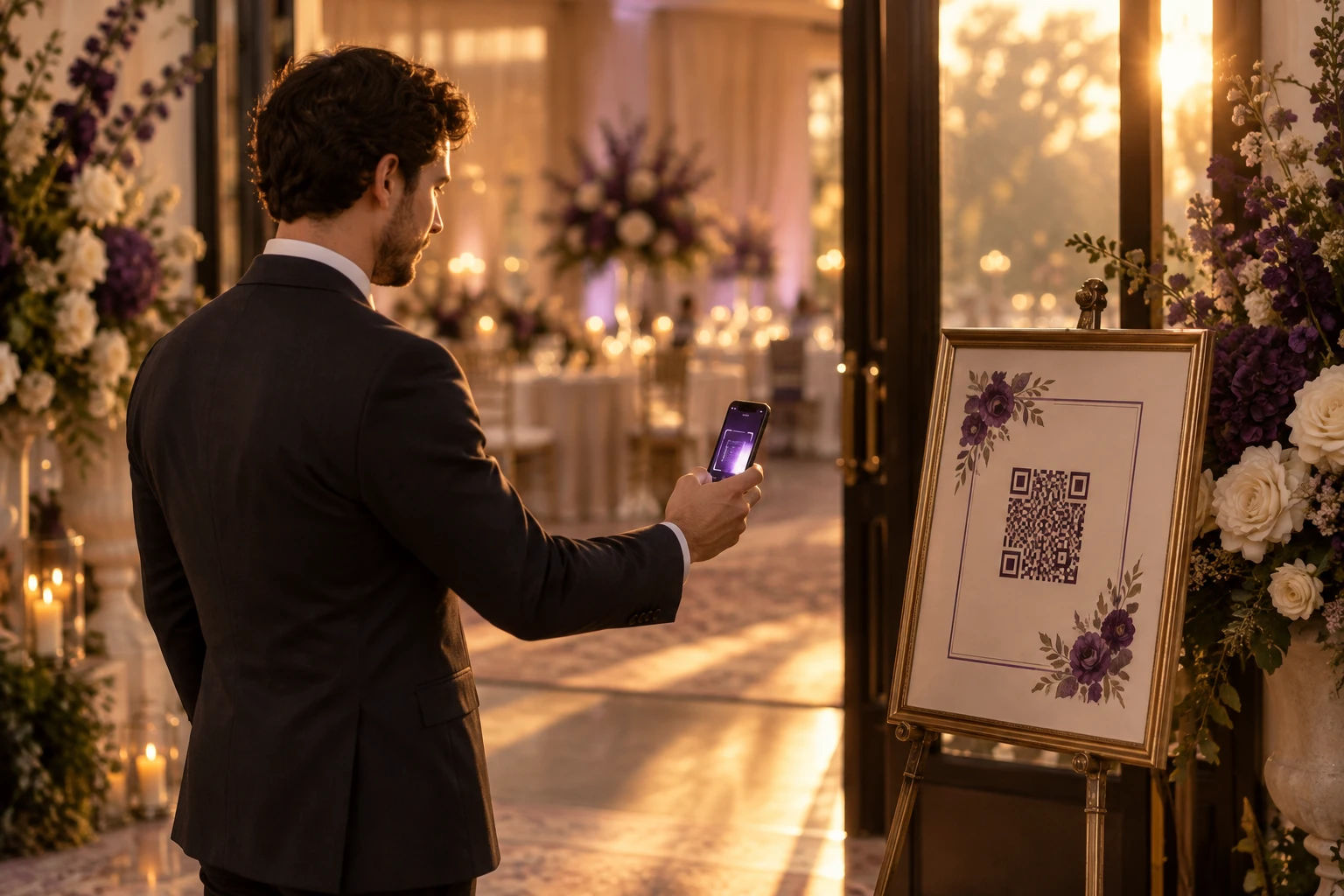
Welcome table or entrance. A framed or acrylic sign with a short instruction line like "Scan to find your seat."
Cocktail area. Small framed codes or cards on high tops. Guests can look up their table while holding a drink, so they already know where to go when dinner starts.
Cocktail napkins. A fun and low-cost option. Guests grab one without thinking about it.
Programs and menus. Useful for guests who forget their table number mid-evening.
Invitation or wedding website. Some couples send the link with the week-of email, so guests can check their table on the drive to the venue.
Test before you order
Print a draft on regular paper, tape it to a wall, and scan it from about six feet away. Venue lighting can lower contrast, so if your final sign has a dark background or a glossy finish, test that too. Then place your order.
The Test Run (Do This a Week Before)
Treat this like a dress rehearsal. It takes fifteen minutes and catches almost every problem.
Scan the QR code with an iPhone and an Android phone.
Try it on cell data and on Wi-Fi.
Search for five guests, including one with a nickname and one with a hyphenated last name.
Move a guest to a different table and scan again to confirm the change shows up.
Ask someone who has never seen it, such as a parent or a friend, to try it without help.
If anything is unclear to that last person, change the sign wording, not the person.
Best Practices Checklist
Here is what experienced planners do to keep the day calm.
For older or less tech-comfortable guests. Smartphone use is common across age groups, but there will always be a few guests who prefer help. Keep a tablet or laptop at the welcome table with your dashboard open, and assign a family member or friend to help. Same data, no second list to maintain. Many guests will also arrive with a relative who scans for them.
For connection problems. QR lookup needs a signal. It does not work without one. Check cell coverage at the entrance and cocktail area during your venue walkthrough. If coverage is weak, put the Wi-Fi name and password on the sign. The page is light, so it loads quickly even on a modest connection.
For last-minute RSVP changes. Freeze your main list about two weeks out and handle exceptions after that through one person, ideally your coordinator. Update the chart from your phone. The QR code stays the same, so nothing on the signs needs to change.
For missing names. On the day, a guest might say they cannot find themselves. Keep a quick process: check the spelling, search by last name, and add them on the spot if needed. It takes under a minute.
For the printed signs. Order extras. A spare QR card for each cocktail table costs little and covers you if a sign gets knocked over.
For your own peace of mind. Save a copy of your final guest list and QR code image on your phone and in your email, so you can reprint anywhere if something goes missing.
Final Thoughts
Making a QR code seating chart comes down to four things: a clean guest list, thoughtful table assignments, a page that looks like your wedding, and a code that scans easily from several spots. Do those well, run one test, and your guests will find their seats in seconds.
If you want to see what the guest side looks like before you build anything, try the live demo. Type a name and watch how quickly it responds.
Generate your custom event QR code today on DigiSeats. There is a free plan for up to 50 guests, with paid plans from $49.99.